







The clock is ticking toward the April 15, 2026 EOL deadline for Citrix file-based licensing. Have you started your mandatory transition to the License Activation Service (LAS), only to hit a brick wall because your on-premise NetScalers refuse to talk to the cloud? Then you've come to the right place.
You're not alone. The shift to LAS promises "automatic renewals" and "simplified licensing," but for many administrators managing (OFF/ON)line NetScaler Console connected appliances, the reality is a series of file transfers to avoid any potential outages.
The traditional Citrix License Server isn't the solution, and that looming License Entitlement Expiry date is a source of some serious anxiety.
Let's turn those on-prem LAS headaches into a set-it-and-forget-it (well, almost!) licensing strategy.
By the end of this guide, you will know:
- The exact NetScaler firmware builds you need to be on.
- How to verify your current licensing type and critical Subscription Advantage (SA) Date.
- The step-by-step LAS Offline Activation process to generate and apply your Entitlement Blob.
- The crucial renewal management steps required to avoid an outage once your offline license is active.
What is Citrix LAS?
Citrix LAS, or License Activation Service, represents a modernization and continuation of the existing Citrix License Server components.
The License Activation Service functions by linking your license server directly to Citrix's cloud service, enabling automatic allocation of licenses based on your purchased entitlements.
This is supposed to make it easier than manually assigning licensing and perhaps forgetting to replace expired ones (oops!).
How do I activate Citrix LAS?
You can activate LAS for your Citrix products if your license server is build 51000 or higher.
It's simple to set up, simply:
- Log in to the Citrix Licensing Manager on your license server.
- Navigate to Dashboard > License Activation Service tab.
- Click Register and copy the code displayed.
- Login to Citrix cloud.
- Navigate to Licensing > Licensed deployment > License Servers > Add License Server.
- Paste the code copied earlier.
- Review the registration details and click Register.
Solving Citrix LAS issues on NetScaler
The licensing structure is applicable to all Citrix products, but here I'll focus on NetScalers, as they can experience some issues if you are not adequately prepared!
What's the issue for File-based Licenses?
Traditionally, Citrix NetScalers support multiple forms of licensing, including File-based, Pooled-Capacity and Flexed licenses.
File-based licensing is still very much used. But this method of applying licenses will reach its official End of Life date on April 15, 2026.
No panic there, right? Wrong!
You still risk becoming unlicensed if you upgrade your firmware with a “Subscription Advantage Date” (SA) that's not future-dated.
Note also that LAS is an added feature in the following firmware versions, meaning you can turn unlicensed when upgrading to either:
- 14.1 build 51.x
- 13.1 build 60.x
- 13.1 build 37.x (FIPS)
And if you have NetScalers in an HA pair and you let the secondary run for 30 days as a secondary, your license will also drop!
Now, if you’re thinking “help, what does that mean?!”, allow me to demonstrate how you can check your licensing type and “SA”, and explain what happens if you do turn unlicensed.
How do I check my NetScaler licensing type and SA?
Luckily, to prevent issues during your upgrade, you can prepare to see what kind of licensing you use!
On the NetScaler, you will find the licensing details in the GUI:
1. Log in to the NetScaler management interface.
2. Navigate to System > Licenses.
3. Here you’ll see an overview of the uploaded and active license(s).
4. If your NetScaler says “Licensing mode: Local” its using File-based Licensing:

5. Download the license file and open it locally.
6. Check for the second date in the file.
The second date tells you how “current” your entitlement is. Think of it as the line in the sand that decides whether your system is allowed to run newer firmware. If the firmware you’re upgrading to was released after your shown date, the NetScaler will probably refuse to apply the license, and you will find yourself in an unlicensed state. This results in your configuration breaking, and I have seen instances where it breaks your access to the GUI too (CLI will still work).
If you are using Pooled Capacity / Flexed Licensing, you should be OK during the upgrade process but you still need to upgrade to LAS licensing before 15-04-2026. This condition is only true if you still have an active subscription with Citrix, of course.
Help! How do I fix a white screen after an upgrade?
- Remove the SSL access (set ns ip <NSIP> -gui enabled) from the management interface via the CLI.
This will allow you to access the GUI again.
DON'T FORGET to turn this on again after your repairs, as it’s an important security setting!
How do I activate Citrix LAS for my NetScalers?
If you want to configure your NetScaler for LAS, the following firmware prerequisites need to be met:
- 14.1 build 51.x
- 13.1 build 60.x
- 13.1 build 37.x (FIPS)
NetScaler instances will also need to utilize the NetScaler Console (or connect directly to the cloud) for LAS licensing to synchronise licences with the cloud.
This means that for those with on-prem NetScalers that aren't connected to the NetScaler Cloud Console, LAS now becomes a lot more complicated.
My on-prem appliances aren't connected to NetScaler Cloud Console, so where does that leave me?
Remember, you must transition to LAS-compatible versions (and by extension, have current maintenance/support) before 15th April 2026 to remain licensed and supported.
NetScaler users currently using File-based Licenses with no NetScaler Cloud Console access must manually do the following well before then...
How do I switch to LAS licensing without connecting to the NetScaler Cloud Console?
To switch to LAS licensing, you must use perform a LAS Offline Activation, which will require you to do the following.
How does LAS Offline Activation work?
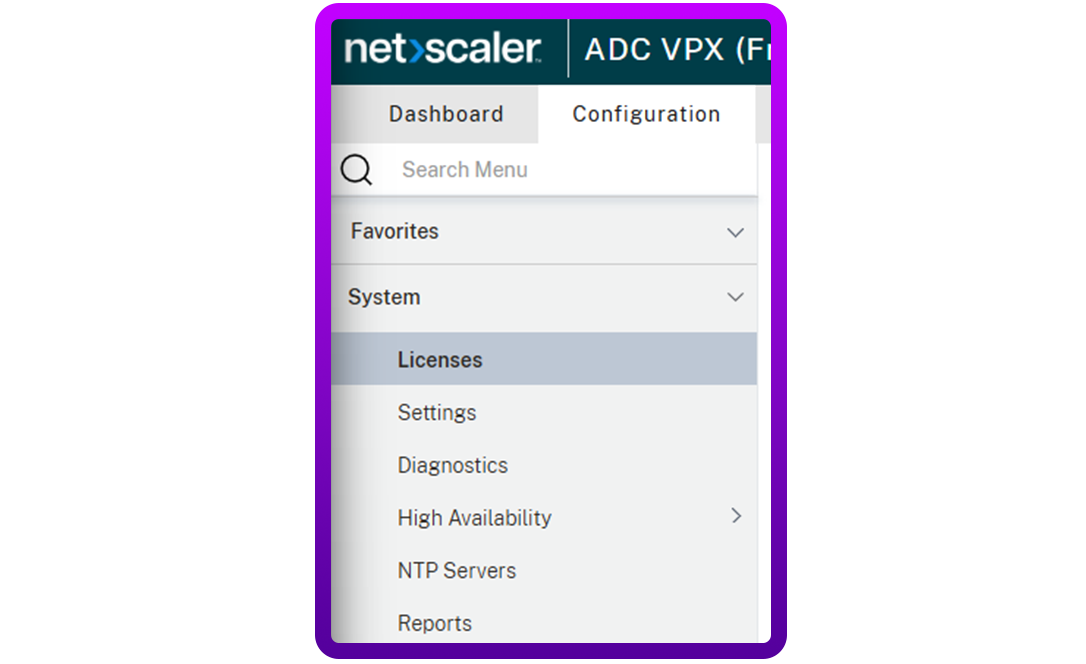
1. Navigate to System > Licenses:
2.You will now be met with a button that says: “LAS Offline Activation”:
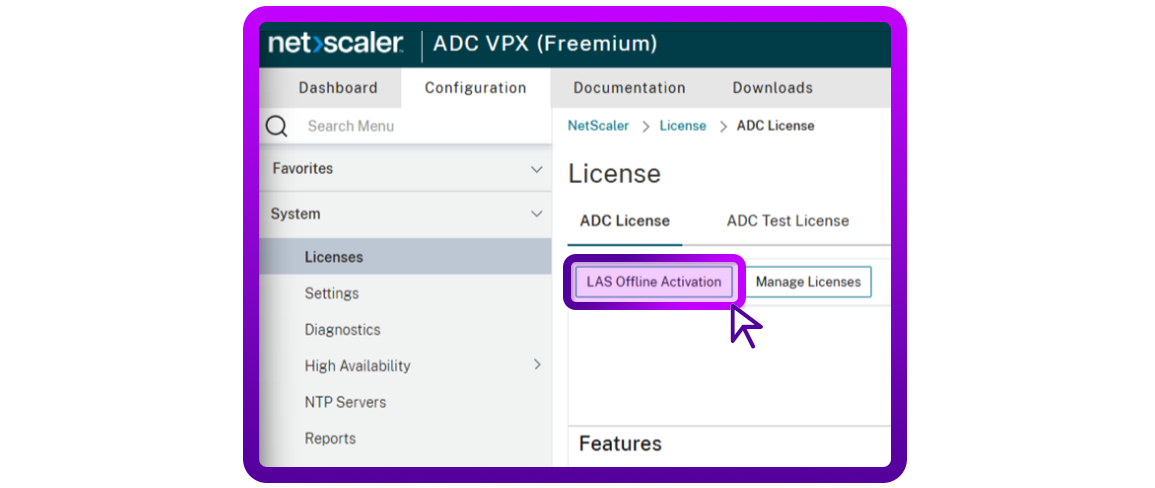
3.When pressing the button you will see the following and need to perform the following steps:
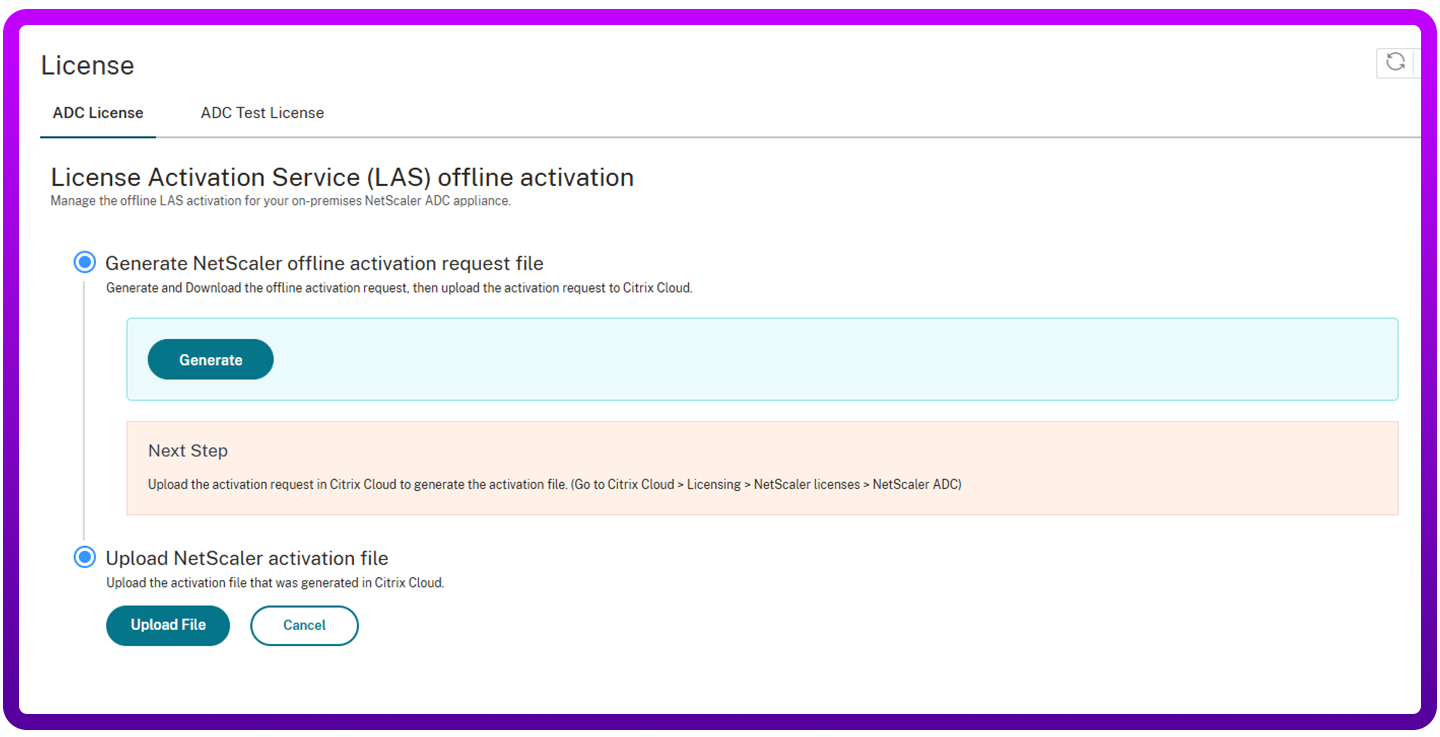
- Press “Generate” to generate your “activation request” file.
- Press the “Download” button that is now available and save the file somewhere on your computer.
- Upload the activation request in Citrix Cloud to generate the activation file. (Go to Citrix Cloud > Licensing > NetScaler licenses > NetScaler ADC).
- Select the license type that you would like to use in the presented steps (e.g. VPX -> 1GBPS premium). This will differ based on what is available to you.
- Download the newly generated “activation blob” file and upload it to your NetScaler:
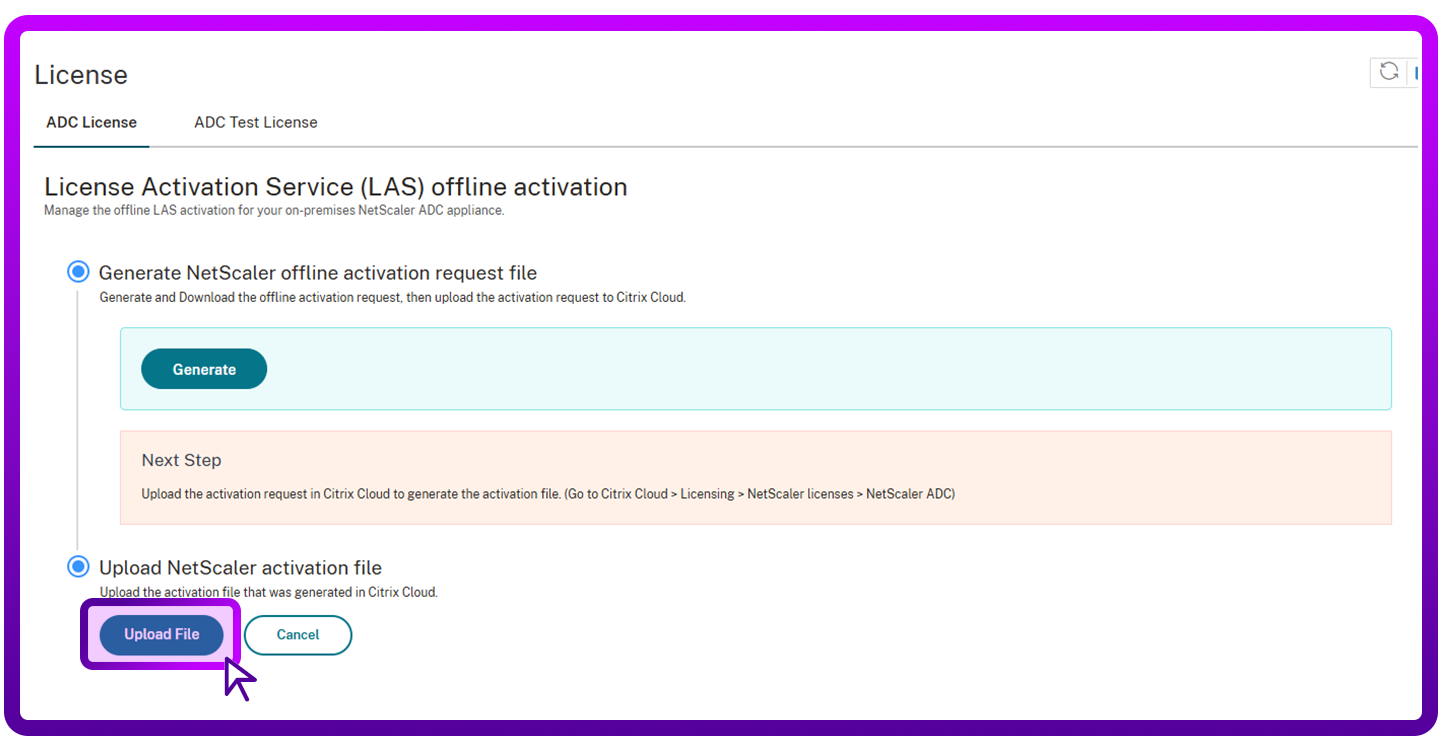
- If all went well, you will now be presented with the question if you want to activate your license straight away. Press “Yes”.
- Save your NetScaler config and do a reboot of the appliance. The license should now be applied.
Still having issues?
I hope this helps you set up NetScaler LAS on-premise!
As an aside, I would expect (hope!) LAS to change its ways over time, so keep an eye out for any changes in the Citrix documentation!
In the meantime, if you need help with your NetScalers, simply comment below or reach out to me on LinkedIn.