







Benefits of load balancing Moodle LMS
Load balancing is crucial for large Moodle LMS (Learning Management System) deployments, especially for universities, colleges, or corporate training platforms that experience high concurrent user activity (like during final exams, course registration, or peak assignment deadlines):
- Uninterrupted peak performance and low latency: Moodle instances often face massive, sudden spikes in traffic. Load balancing ensures that all users receive a fast and responsive experience, preventing server overload and lag. The load balancer intelligently routes each user’s request (e.g., logging in, submitting a quiz, viewing a video) to the least busy server in the Moodle cluster. This prevents a single server from becoming a bottleneck during high-stress events, maintaining fast page load times and responsiveness for everyone. Students and instructors can then use the platform efficiently without frustrating slowdowns or timeouts, which is critical for success in online learning.
- High Availability (HA) and resilience: Moodle is often a mission-critical system. Load balancing eliminates the risk of a single point of failure, ensuring the platform is always accessible. The load balancer continuously monitors the “health” of all Moodle web servers. If a server fails, crashes, or is taken down for maintenance/updates, the load balancer instantly stops sending new connections to it and reroutes all traffic to the remaining healthy servers. It allows administrators to perform rolling updates and maintenance on individual servers one at a time without impacting the end-users’ access. Provides a guaranteed level of uptime (high availability), which is essential for institutions that run 24/7 global programs or critical end-of-term assessments.
- Scalability and cost efficiency: Load balancing provides the necessary architecture to scale the Moodle platform easily and cost-effectively as the institution or user base grows. When user demand permanently increases (e.g., new semester enrollment), new Moodle servers can be quickly added to the cluster. The load balancer immediately incorporates them, distributing the load automatically.
About Moodle’s Learning Management System (LMS)
Moodle LMS is an open source learning platform used to create personalized learning environments. The application is designed to provide a single, secure, integrated learning platform which contains learner-centric tools and resources, and collaborative learning environments to empower both teachers and students.
We love it because it integrates really well with other external applications to achieve additional functionality. It’s also web-based which means it can be accessed from anywhere in the world (except for those using Geo-blocking).
Why Loadbalancer.org for Moodle LMS
Loadbalancer’s intuitive Enterprise Application Delivery Controller (ADC) is designed to save time and money with a clever, not complex, WebUI.
Easily configure, deploy, manage, and maintain our Enterprise load balancer, reducing complexity and the risk of human error. For a difference you can see in just minutes.
And with WAF and GSLB included straight out-of-the-box, there’s no hidden costs, so the prices you see on our website are fully transparent.
More on what’s possible with Loadbalancer.org.
How to load balance Moodle LMS
There are two ways to configure the load balancer, depending on your requirements:
- An insecure Layer 7 HTTP through and through, with both the load balancer and the application servers on port 80; or
- Layer 7 HTTPS.
For full details, refer to this blog: Load balancing Moodle’s learning application system (LMS). A summary of the configuration is noted below.
L7 HTTP deployments
- First, deploy the Loadbalancer.org appliance and get through the deployment steps and setup your management interface, gateway and Domain Name System (DNS).
- Once connected to the WebUI of the Loadbalancer, navigate to Cluster Configuration>Layer 7 Virtual Services, and click on the Add a new Virtual Service button.
- Enter the appropriate Label and IP address, leave the port field set to 80, protocol to HTTP, then click on the ‘Update’ button. After doing so you will be prompted to ‘Reload HAProxy’, so click on that as well.
- Navigate to Cluster Configuration>Layer7 Real Servers and click on the ‘Add a new Real Server’ button next to the newly created VIP. Enter the IP address of the Real Server that is serving Moodle, leave all other fields as they are, and click the ‘Update’ button. After doing so you will be prompted to ‘Reload HAProxy’, so click on that as well.
Repeat this step as many times as needed to add all of your Real Servers.
- Go to Cluster Configuration, Layer 7 Virtual Services and click on ‘Modify’ next to the newly created Moodle VIP.
Under ‘Persistence’, we can either use: Source IP, Application Cookie or None. You will need to set the timeout to be the same as the Inactivity Timeout set in Moodle under the Online users tab during your configuration. Note, you also have a ‘?’ next to persistence where all methods are explained.
After selecting the desired value and persistence type, click on ‘Update’ and you will again be prompted to ‘Reload HAProxy’.
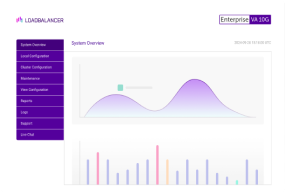
- Now navigate to the System overview.
- (Optional) If transparency is required and you need the originating IP address of the client, you need to navigate to Cluster Configuration>Modify the Moodle VIP, scroll to the bottom, click on the ‘Advanced’ dropdown, and simply ‘Enable Transparent Proxy’.
Please be advised that additional steps need to be taken on the Real Servers in order for this to work. The gateway of the RIP needs to be an IP address from the Loadbalancer; please refer here to page 144 of our administration manual.
L7 HTTPS deployments
Note
For Layer 7 HTTPS deployments, the above steps still need to be followed. However, the following additional steps are then required to be taken on the Loadbalancer.org appliance.
- Go to Cluster configuration, navigate to ‘Layer 7 Virtual Services’, and click modify to the newly created VIP, scroll to the bottom, click on the ‘Advanced’ dropdown, and set the ‘Force To HTTPS’ option to ‘YES’, and the redirect code to ‘302’. If you try to access the VIP, it won’t work and you will get a ‘Refused connection’ error as additional steps are required.
- We need to create an SSL termination for the VIP in order to make the ‘Force To HTTPS’ option work, so please navigate to Cluster Configuration, SSL Termination and click on the ‘Add a new Virtual Service’ button on the right side.
- Add a label to your SSL Termination and from the ‘Associated Virtual Service’ dropdown select the Moodle VIP. Click on ‘Update’, and you will be prompted to ‘Reload HAProxy and STunnel’ on the blue banners on the top. After reloading both you will be able to access the VIP IP, and be redirected to HTTPS.
Note: the Moodle server needs to be configured to support SSL proxies, and to ensure that all URLs are HTTPS rather than HTTP. This configuration is stored in config.php which is located in the moodle/htdocs directory.